What Is an IP Address? How It Works and How to Find Yours
What is an IP address? Learn how it works, public vs private and IPv4 vs IPv6, what it reveals about you, and how to find yours on any device.
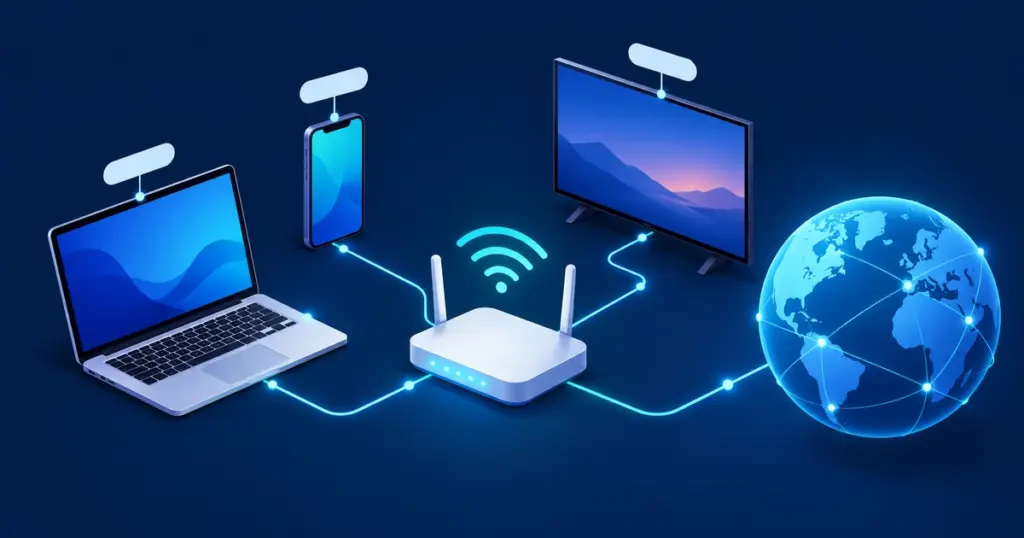
An IP address is a number that identifies a device or connection on a network so information knows where to go. A mailing address is a fair comparison: when you open a website, the internet needs to know where to send the page back.
This guide covers how IP addresses work, how to find yours, and what other people can and can’t learn from it.
TL;DR
- Your IP address helps websites and devices send information to the right place.
- Your home usually shares one public IPv4 address, while each device has its own private address.
- You can check your public IP in seconds and use a VPN, proxy, or Tor to hide it from websites.
What is an IP address?
IP stands for Internet Protocol. An IP address is part of the system that lets phones, computers, routers, and websites talk to one another.
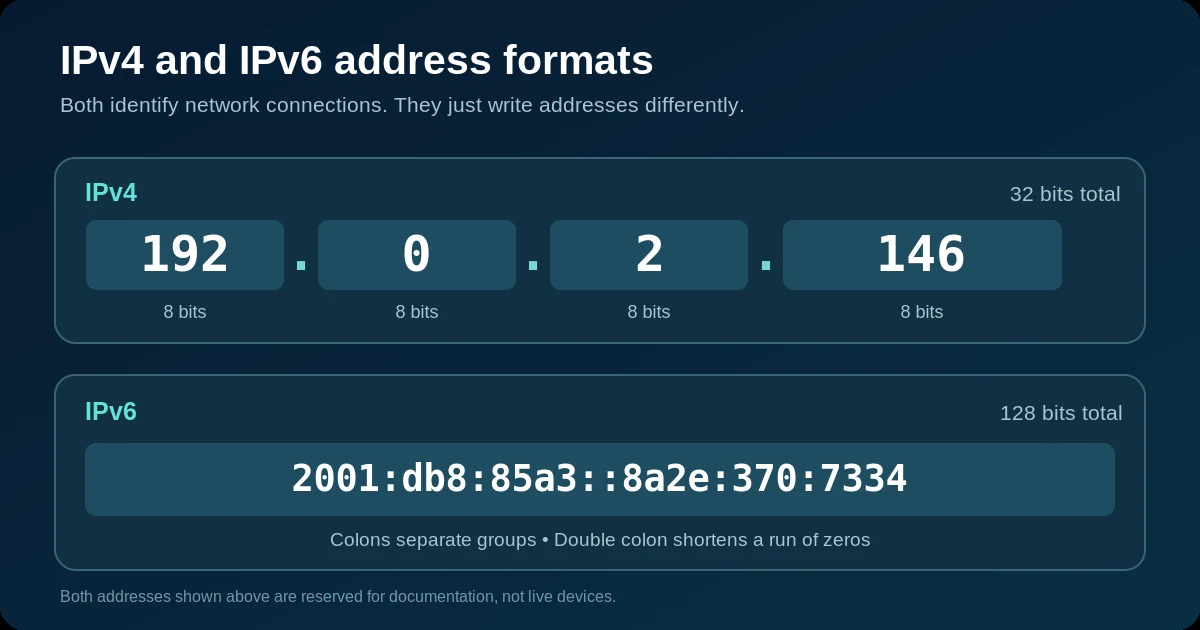
An IPv4 address looks like 192.0.2.146 (a sample address, not a real connection). Its four groups are separated by dots.
Addresses come down a chain of organizations. IANA manages the global supply of IP addresses. Regional registries pass blocks to network operators and internet service providers (ISPs). Your ISP assigns an address to your connection. At home, your router hands out local addresses through DHCP the moment a device joins the network.
How does an IP address work?
When you type techtolead.com into your browser, a system called DNS first finds the IP address linked to that name. Your device then sends a request across the internet. The request travels in small pieces called packets, which carry source and destination addresses.
Routers forward the packets; the website sends a reply, and your browser shows the page.
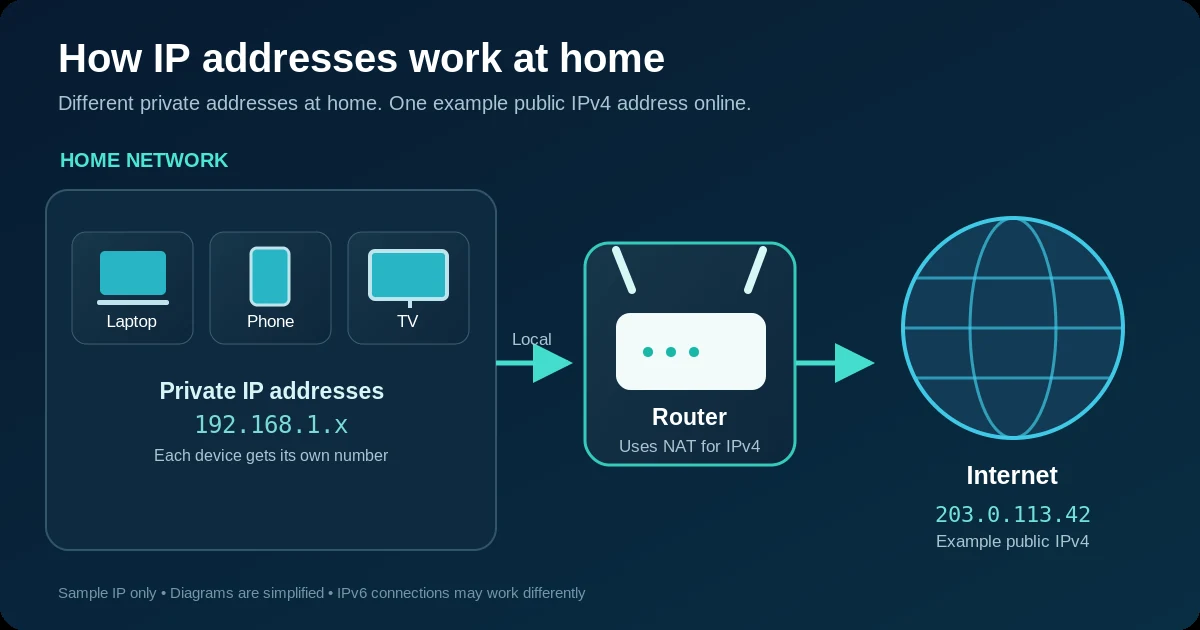
At home, your Wi-Fi router does another useful job. It gives your laptop, phone, and TV their own private IP addresses. When they connect to the wider internet using IPv4, the router often lets them share one public address. This is called NAT, short for Network Address Translation.
It works like an apartment building: one street address, many apartments. IPv6 can work differently, so not every connection uses NAT.
Types of IP addresses
Some IP addresses work on the public internet; others work only inside your network. They may stay the same or change.
| Type | What it means | Example | Where you’ll find it |
|---|---|---|---|
| Public | An address used to reach your connection over the internet | 203.0.113.42 (sample only) | Your router’s internet connection or a server |
| Private | An address used inside a local network | The 192.168.0.0/16 private range | Phones, laptops, printers, and TVs at home |
| Static | An address set to stay the same | A fixed address assigned by a provider | Servers, some business connections |
| Dynamic | An address that can be assigned again or changed | An address given through DHCP | Most home and mobile connections |
| Loopback | An address a device uses to talk to itself | 127.0.0.1 | Testing apps on your own computer |
Does everyone in your house have the same IP address? Often, yes and no. If everyone is using the same home Wi-Fi, websites will usually see the same public IPv4 address for all those devices. Inside the house, however, each device has a different private address. Mobile data, VPNs, and IPv6 connections can change what a website sees.
Private IPv4 addresses come from three reserved ranges: 10.0.0.0/8, 172.16.0.0/12, and 192.168.0.0/16. These ranges aren’t directly reachable from the public internet.
Static and dynamic describe something else: whether the address changes. A private address can be static or dynamic, and the same is true of a public one.
IPv4 vs IPv6
There are two main versions of IP addresses: IPv4 and IPv6. They use different formats.
| Feature | IPv4 | IPv6 |
|---|---|---|
| Address size | 32 bits | 128 bits |
| Number of possible addresses | About 4.3 billion | About 340 undecillion (3.4 × 10³⁸) |
| Format | Four decimal groups separated by dots | Groups of letters and numbers separated by colons |
| Example | 192.0.2.146 | 2001:db8:85a3::8a2e:370:7334 |
IPv4 came first, but connected devices grew faster than its available addresses. On February 3, 2011, IANA handed out the last large blocks from its free pool of IPv4 addresses to regional registries, according to RIPE NCC.
IPv6 was built to provide a much bigger pool of addresses. It’s already widely used: according to the Internet Society, 50.10% of access to Google used IPv6 on March 28, 2026, the first time the figure crossed 50%.
Your device may use either or both, depending on the network and website.
How to find your IP address
First, decide which address you need.
Your public IP is what a website usually sees. Your private IP only matters inside your own network, for example when you set up a printer or a game console. You may also have an IPv6 address.
Find your public IP on any device
- Open a browser on your computer or phone.
- Search for what is my IP or visit a site such as WhatIsMyIPAddress.
- Look for the IPv4 or IPv6 address shown on the page.
This works on a phone too. With a VPN, you’ll usually see the VPN’s IP instead.
Find your private IP on Windows 11
- Open Start → Settings → Network & internet.
- Choose Wi-Fi, then your connected network, or select Ethernet if you use a cable.
- Open Properties if needed, and look for IPv4 address.
You can also open Command Prompt, type ipconfig, and press Enter. Find IPv4 Address under the network connection you’re using. This also works when you want to find an IP address on a computer quickly.
Find your private IP on a Mac
- Open Apple menu → System Settings → Wi-Fi.
- Click Details beside your connected network.
- Look for IP address.
In Terminal, ipconfig getifaddr en0 often shows the Wi-Fi IPv4 address, although your Mac might use a different connection name.
Find your private IP on an iPhone
- Open Settings → Wi-Fi.
- Tap the ⓘ button next to the network you’re using.
- Scroll to IPv4 Address and find IP Address.
On mobile data, use the public-IP method above.
Find your private IP on Android
- Open Settings → Network & internet → Internet.
- Tap the gear icon beside the connected Wi-Fi network.
- Look for IP address, sometimes under Network details or Advanced.
Android menus vary by phone brand and software version. If these labels don’t match your screen, search for IP address in your phone’s Settings app.
Find IP addresses through your router
Find Router or Default Gateway in your device’s network settings. Enter that address in a browser and sign in to the router. Look for Connected devices, Clients, or Device list. The labels vary by router.
If a guide mentions 192.168.1.1 or 192.168.0.1, those are common private router addresses, not public IPs. Use the address shown on your own device rather than guessing.
What can someone do with your IP address?
Your IP isn’t a secret, but it does say a little about you.
An IP address can often tell someone your internet provider, country, and a rough city or region. It does not, on its own, give a stranger your name, your phone number, or your exact home address.
Location guesses can be wrong. For US addresses, MaxMind’s location data reports that 60% are placed within 50 km of their known location. Another 32% are matched to a city but are farther than 50 km away, and 8% have no city-level result. That’s why an IP lookup might show the next city over.
Your ISP may be able to link an assigned address to your account at a certain time. Access to those records depends on the provider, the records kept, and the law. A random person with your IP can’t look up your billing address.
There are still practical risks. Sites can use IPs to guess your area, limit access by region, or block repeat visitors. In some online games, an exposed IP can be targeted with a DDoS attack—a flood of traffic that interrupts a connection. A website can also combine an IP with cookies or account details to recognize visits more easily.
How to hide or change your IP address
To hide your usual public IP from websites, you have a few options.
| Method | What websites see | Speed | Cost | Best for |
|---|---|---|---|---|
| VPN | The VPN server’s IP | Usually good, but may slow down | Often paid; some free plans | Everyday privacy across your device |
| Proxy | The proxy server’s IP for the app using it | Varies a lot | Free or paid | Changing the IP for one browser or app |
| Tor Browser | A Tor exit relay’s IP | Usually slower | Free | Browsing with stronger identity protection |
| Mobile data | Your mobile provider’s IP | Depends on signal | Uses your data plan | Switching away from your home connection |
A VPN sends your traffic through a VPN provider’s server, so sites see that server’s address instead of yours. Reputable VPNs also encrypt traffic between your device and the VPN server. That doesn’t make you invisible: the VPN provider still plays a role in handling your traffic, and websites can still recognize you if you sign in. You can compare VPNs or look at a VPN with a free plan.
A proxy changes the IP seen by a particular app or browser. It may not encrypt your connection. Read what proxies are and when to use them, or browse our proxy provider reviews.
Tor Browser sends your browsing through several relays, making it harder for sites to connect your visits to your original IP. It can feel slower, and logging into an account can still identify you.
Using mobile data usually changes the IP seen by websites. Restarting your router might change a dynamic IP, but there’s no guarantee.
One thing that doesn’t work: opening an incognito or private browsing window. Incognito mostly keeps browsing history and certain site data off your device after the session. It doesn’t hide your IP address from websites.
Key points to remember
Your IP address is one of the ways the internet knows where to send data. Remember three things: your device may have both public and private addresses, finding either one takes only a few taps, and an IP lookup usually shows a rough area—not your front door.
You don’t have to hide your IP to use the internet safely. But if you want to make it harder for websites to see your usual connection, a VPN is an easy place to start. Check our VPN reviews or browse the best cheap VPNs to compare your options. Pick the one that fits how you actually use the internet.
Frequently asked questions
Is an IP address the same as Wi-Fi?
No. Wi-Fi connects devices wirelessly. IP addresses help them exchange data over Wi-Fi, mobile data, or a cable.
Does my IP address change?
Yes, if it’s dynamic. Public and private addresses can change. Static addresses are meant to stay the same.
Can someone find my home address from my IP?
Not from the IP alone. Location tools guess a region, not a reliable street address. ISPs may have account records tied to the IP.
What is 192.168.1.1?
It’s a common private address used by home routers. Some routers use it for their settings page, but yours might use another address. It isn’t your public internet address.
What's the difference between an IP address and a MAC address?
An IP address helps data move between networks. A MAC address identifies a network interface on the local network; devices can use private MAC addresses too.
Does incognito mode hide my IP address?
No. Incognito doesn’t replace your public IP. For that, you’d need something like a VPN, a proxy, or Tor Browser.